
Engineering · Raspberry Pi · Project 25 of 47 · Camera and vision · Beginner
Take a photo with a button
Press the shutter button and the Pi takes a picture. An LED flashes like a camera flash. Your first program with the Pi Camera.
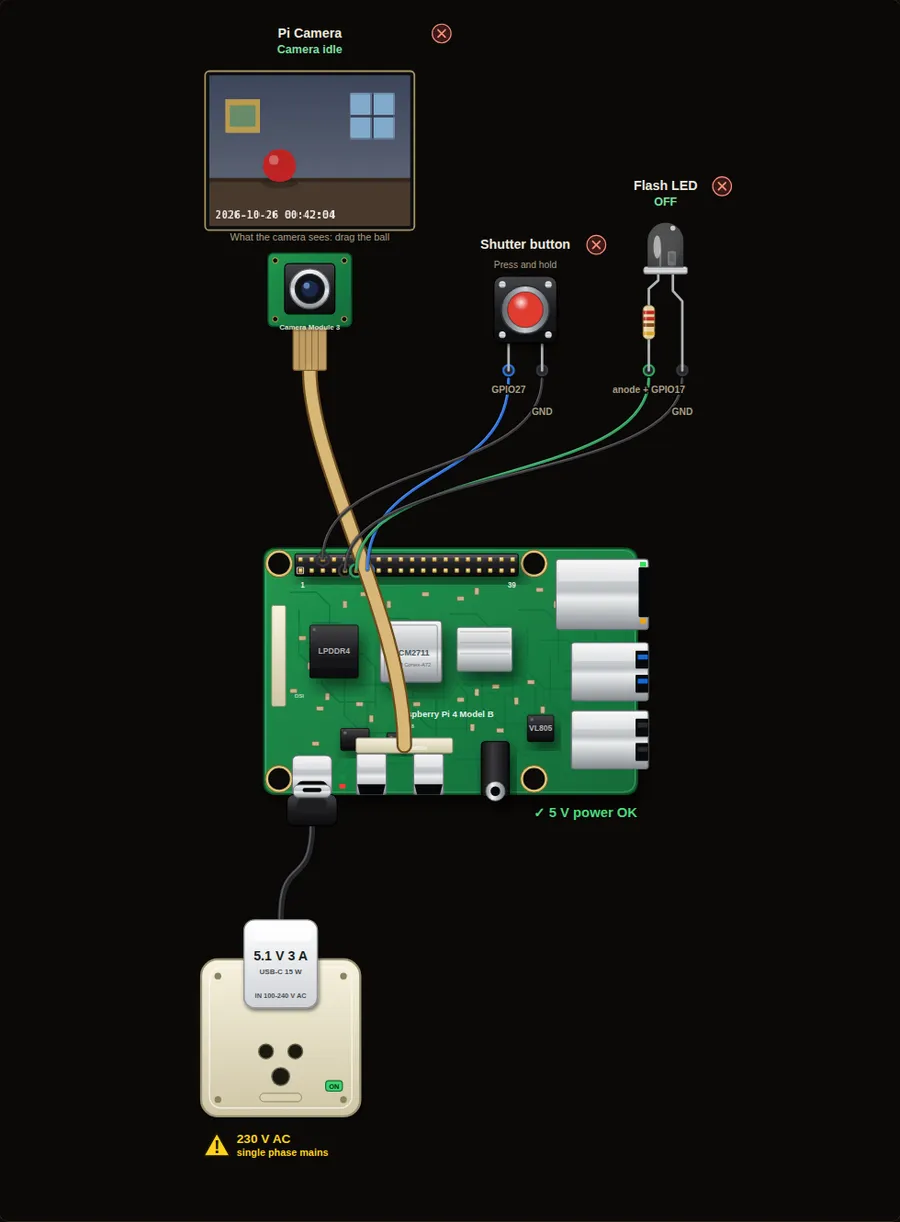
Privacy and safety. A camera records people. Tell everyone who lives in or visits the place, keep the pictures private, and delete old ones. Switch the Pi off before you plug in or remove the camera ribbon cable.
Parts in this circuit
| Part | Type |
|---|---|
| Pi Camera | Pi Camera Module 3 |
| Shutter button | Push button |
| Flash LED | LED |
Wiring, pin by pin
Red = 5 V, orange = 3.3 V, black = GND, other colours = signals. “Pin” is the position on the 40-pin header; the GPIO number is what the code uses. Power the Pi from a 5.1 V supply and wire with the power off.
| # | Colour | From (part and leg) | To (header pin) |
|---|---|---|---|
| 1 | Coloured | Shutter button - Signal | Pin 13 (GPIO27) |
| 2 | Black | Shutter button - GND | Pin 6 (GND) |
| 3 | Coloured | Flash LED - anode + | Pin 11 (GPIO17) |
| 4 | Black | Flash LED - cathode - | Pin 9 (GND) |
Python code (gpiozero)
from picamera2 import Picamera2
from gpiozero import Button, LED
from signal import pause
from time import sleep

cam = Picamera2()
cam.configure(cam.create_still_configuration())
cam.start()
sleep(1)                      # let the camera adjust to the light

shutter = Button(27)
flash = LED(17)
count = 0

def take_photo():
    global count
    count += 1
    flash.on()
    cam.capture_file("photo%d.jpg" % count)
    flash.off()

shutter.when_pressed = take_photo
print("Move the ball, then press the shutter button")
pause()
The same program with RPi.GPIO
import RPi.GPIO as GPIO
from picamera2 import Picamera2
import time

GPIO.setmode(GPIO.BCM)
GPIO.setup(27, GPIO.IN, pull_up_down=GPIO.PUD_UP)   # shutter button to GND
GPIO.setup(17, GPIO.OUT)                            # flash LED

cam = Picamera2()
cam.configure(cam.create_still_configuration())
cam.start()
time.sleep(1)

count = 0
try:
    while True:
        if GPIO.input(27) == 0:          # pressed
            count += 1
            GPIO.output(17, 1)
            cam.capture_file("photo%d.jpg" % count)
            GPIO.output(17, 0)
            while GPIO.input(27) == 0:   # wait until released
                time.sleep(0.02)
        time.sleep(0.02)
finally:
    GPIO.cleanup()
How the code works
- Picamera2() opens the camera. configure() chooses the picture settings and start() switches the camera on.
- sleep(1) gives the camera a moment to set its brightness, like your eyes in a dark room.
- capture_file("photo1.jpg") saves one picture. The counter gives every photo a new name.
- The flash LED is on only while the picture is taken.
You will learn
- How a camera joins the Pi through the CAMERA (CSI) port
- Starting the camera and saving a picture
- Using a button to trigger an action
Try this
- Drag the ball to a new place, press the button and compare the photos.
- Change the room light slider and take another photo. What changes?
- Add a second button that takes 3 photos, one second apart.
On a real Pi
- The camera ribbon cable goes into the CAMERA port with the contacts facing the right way. Switch the Pi off first.
- Photos are saved in the folder where the program runs. Give them a date in the name so that they never overwrite each other.
- A real camera needs libcamera. Update Raspberry Pi OS and test it first with the command rpicam-hello.
Parts to buy
The links open a search on each store, so you see what is in stock today. Check the model, voltage and price before you order.
| # | Item | Qty | Buy / compare |
|---|---|---|---|
| 1 | Raspberry Pi 4 Model B about 4000 to 9000 INR | 1 | Robu.in Amazon.in ThinkRobotics |
| 2 | Official 15 W USB-C power supply (5.1 V, 3 A) Do not use an old phone charger | 1 | Robu.in Amazon.in ThinkRobotics |
| 3 | microSD card 32 GB, class 10 / A1 (with Raspberry Pi OS) And a card reader to write it | 1 | Robu.in Amazon.in ThinkRobotics |
| 4 | 5 mm LED, white | 1 | Robu.in Amazon.in ThinkRobotics |
| 5 | 330 ohm resistor, 1/4 W One per LED | 1 | Robu.in Amazon.in ThinkRobotics |
| 6 | Tactile push button (12 mm, with cap) | 1 | Robu.in Amazon.in ThinkRobotics |
| 7 | Raspberry Pi Camera Module 3 (12 MP, autofocus) Or a Camera Module 2 / HQ camera | 1 | Robu.in Amazon.in ThinkRobotics |
| 8 | CSI camera ribbon cable, 15-pin, 30 cm Check the port size of your board | 1 | Robu.in Amazon.in ThinkRobotics |
| 9 | Camera mount or small tripod | 1 | Robu.in Amazon.in ThinkRobotics |
| 10 | Dupont jumper wires, male-to-female, 20 cm (pack of 40) | 1 | Robu.in Amazon.in ThinkRobotics |
| 11 | Breadboard 830 points For resistors and shared GND / 5 V | 1 | Robu.in Amazon.in ThinkRobotics |
This is a learning tool. The simulator checks the program logic, not the electrical design. Never put more than 3.3 V on a GPIO pin.