
Engineering · Raspberry Pi · Project 4 of 47 · Inputs · Beginner
Door alarm with a buzzer
A buzzer beeps while a door switch is open. You learn to wait for an input and to run a beep in the background.
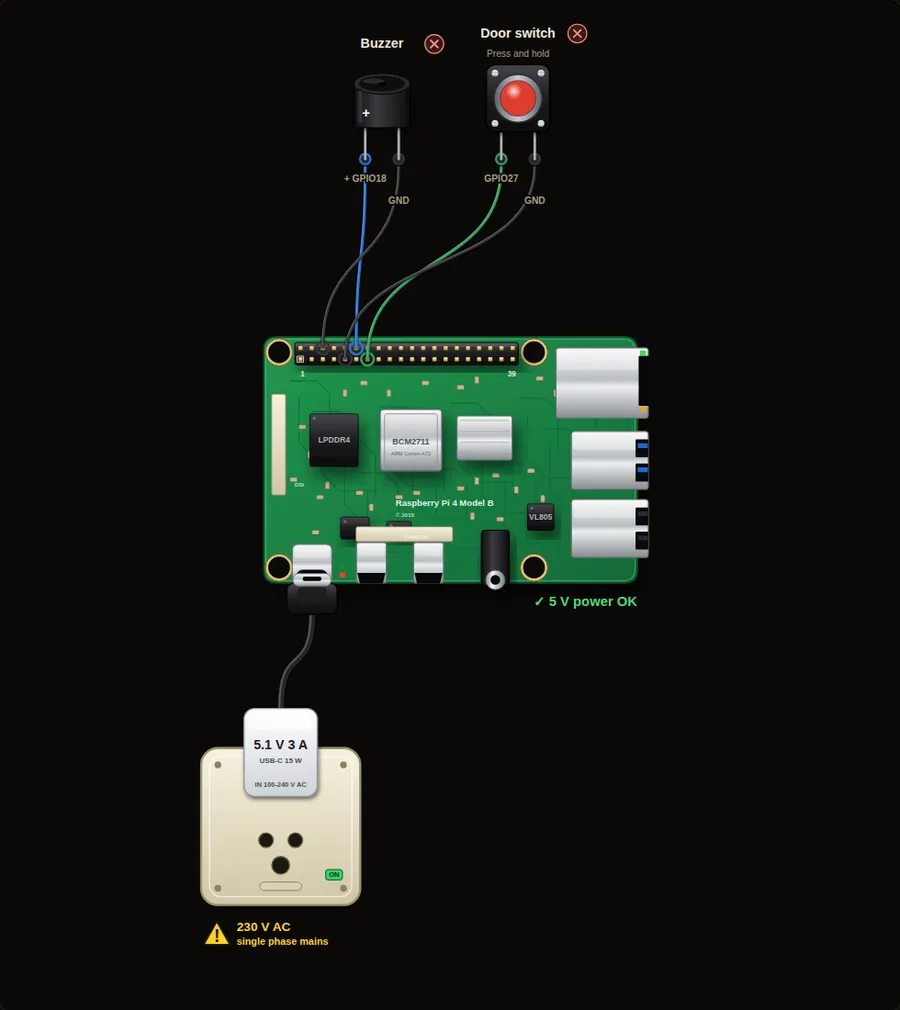
Parts in this circuit
| Part | Type |
|---|---|
| Buzzer | Buzzer |
| Door switch | Push button |
Wiring, pin by pin
Red = 5 V, orange = 3.3 V, black = GND, other colours = signals. “Pin” is the position on the 40-pin header; the GPIO number is what the code uses. Power the Pi from a 5.1 V supply and wire with the power off.
| # | Colour | From (part and leg) | To (header pin) |
|---|---|---|---|
| 1 | Coloured | Buzzer - + | Pin 12 (GPIO18) |
| 2 | Black | Buzzer - - | Pin 6 (GND) |
| 3 | Coloured | Door switch - Signal | Pin 13 (GPIO27) |
| 4 | Black | Door switch - GND | Pin 9 (GND) |
Python code (gpiozero)
from gpiozero import Buzzer, Button

buzzer = Buzzer(18)
door = Button(27)          # the button acts as a door switch

print("Door closed. Press and hold to open the door.")

while True:
    door.wait_for_press()          # sleep until the door opens
    print("DOOR OPEN! Alarm!")
    buzzer.beep(0.2, 0.2)          # beep in the background
    door.wait_for_release()        # wait until the door closes
    buzzer.off()
    print("Door closed.")
How the code works
- wait_for_press() makes the program sleep until the button goes down. It uses no CPU while waiting.
- buzzer.beep(0.2, 0.2) starts a beep pattern in the background and the program carries on.
- buzzer.off() stops the beeping when the door closes.
You will learn
- wait_for_press and wait_for_release
- Background actions: beep() keeps going while the code waits
- Active buzzer versus passive buzzer
Try this
- Beep faster: change both numbers to 0.05.
- Count how many times the door was opened and print the count.
- Add a red LED that stays on after an alarm until reset.
On a real Pi
- An active buzzer has its own oscillator and just needs on/off. A passive buzzer needs a PWM tone.
- Use a transistor for buzzers that draw more than about 10 mA.
Parts to buy
The links open a search on each store, so you see what is in stock today. Check the model, voltage and price before you order.
| # | Item | Qty | Buy / compare |
|---|---|---|---|
| 1 | Raspberry Pi 4 Model B about 4000 to 9000 INR | 1 | Robu.in Amazon.in ThinkRobotics |
| 2 | Official 15 W USB-C power supply (5.1 V, 3 A) Do not use an old phone charger | 1 | Robu.in Amazon.in ThinkRobotics |
| 3 | microSD card 32 GB, class 10 / A1 (with Raspberry Pi OS) And a card reader to write it | 1 | Robu.in Amazon.in ThinkRobotics |
| 4 | Tactile push button (12 mm, with cap) | 1 | Robu.in Amazon.in ThinkRobotics |
| 5 | Active buzzer, 5 V | 1 | Robu.in Amazon.in ThinkRobotics |
| 6 | Dupont jumper wires, male-to-female, 20 cm (pack of 40) | 1 | Robu.in Amazon.in ThinkRobotics |
| 7 | Breadboard 830 points For resistors and shared GND / 5 V | 1 | Robu.in Amazon.in ThinkRobotics |
This is a learning tool. The simulator checks the program logic, not the electrical design. Never put more than 3.3 V on a GPIO pin.