
Engineering · Raspberry Pi · Project 2 of 47 · Inputs · Beginner
Button controls an LED
Read a pushbutton and let it switch an LED. This is the base of every operator panel and every machine start button.
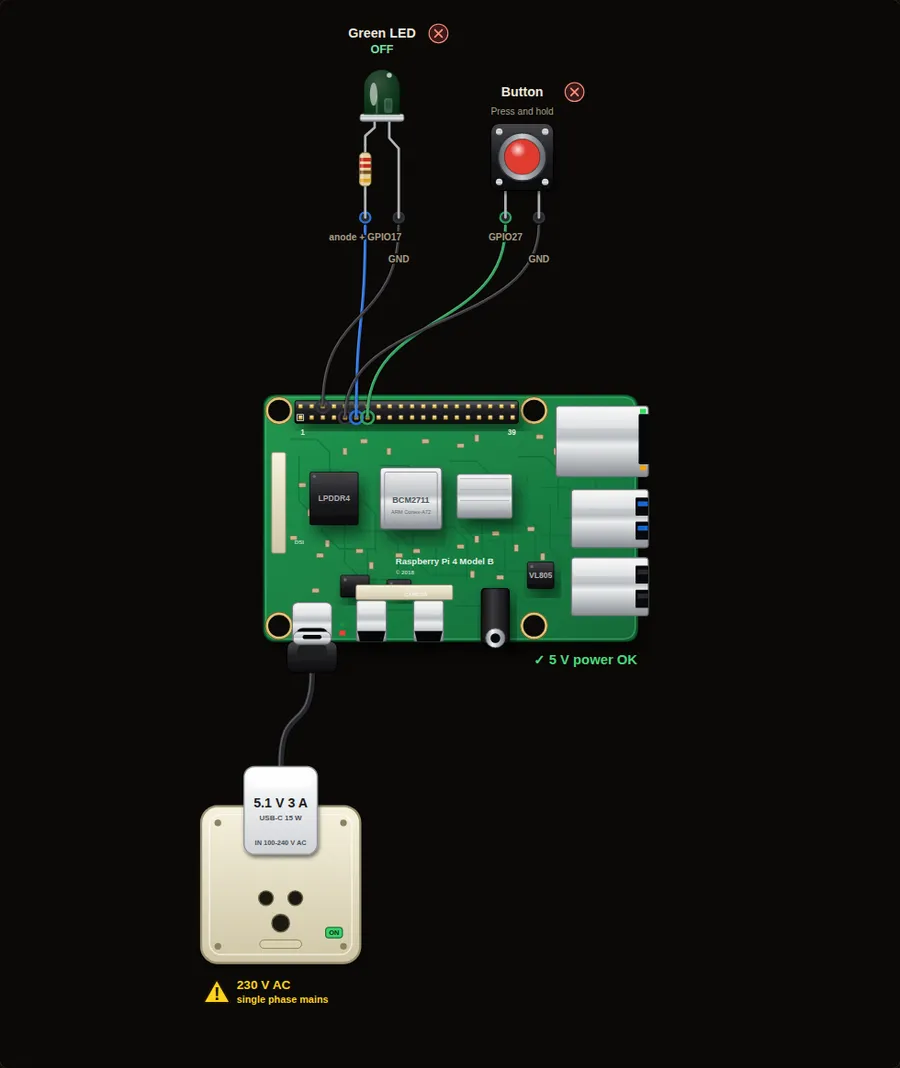
Parts in this circuit
| Part | Type |
|---|---|
| Green LED | LED |
| Button | Push button |
Wiring, pin by pin
Red = 5 V, orange = 3.3 V, black = GND, other colours = signals. “Pin” is the position on the 40-pin header; the GPIO number is what the code uses. Power the Pi from a 5.1 V supply and wire with the power off.
| # | Colour | From (part and leg) | To (header pin) |
|---|---|---|---|
| 1 | Coloured | Green LED - anode + | Pin 11 (GPIO17) |
| 2 | Black | Green LED - cathode - | Pin 6 (GND) |
| 3 | Coloured | Button - Signal | Pin 13 (GPIO27) |
| 4 | Black | Button - GND | Pin 9 (GND) |
Python code (gpiozero)
from gpiozero import LED, Button
from signal import pause

led = LED(17)
button = Button(27)

button.when_pressed = led.on        # run led.on when pressed
button.when_released = led.off      # run led.off when released

print("Press and hold the button on the screen")
pause()                             # keep the program alive
The same program with RPi.GPIO
import RPi.GPIO as GPIO
import time

GPIO.setmode(GPIO.BCM)
GPIO.setup(17, GPIO.OUT)
GPIO.setup(27, GPIO.IN, pull_up_down=GPIO.PUD_UP)   # button to GND

try:
    while True:
        pressed = (GPIO.input(27) == 0)     # pulled up: 0 means pressed
        GPIO.output(17, pressed)
        time.sleep(0.02)
finally:
    GPIO.cleanup()
How the code works
- Button(27) watches GPIO27. gpiozero turns on the internal pull-up resistor for you.
- when_pressed and when_released are events. You give them a function and gpiozero calls it at the right moment.
- pause() stops the script from ending while it waits for events.
You will learn
- Input: reading a button
- Events: run a function when something happens
- Pull-up resistors
Try this
- Make the button toggle the LED on each press: use led.toggle instead of led.on.
- Print "pressed" and "released" with your own functions.
- Add a second LED that is on only while the button is NOT pressed.
On a real Pi
- Wire the button between GPIO27 and GND. The internal pull-up keeps the pin high until you press.
- Real buttons bounce for a few milliseconds. gpiozero filters this for you.
Parts to buy
The links open a search on each store, so you see what is in stock today. Check the model, voltage and price before you order.
| # | Item | Qty | Buy / compare |
|---|---|---|---|
| 1 | Raspberry Pi 4 Model B about 4000 to 9000 INR | 1 | Robu.in Amazon.in ThinkRobotics |
| 2 | Official 15 W USB-C power supply (5.1 V, 3 A) Do not use an old phone charger | 1 | Robu.in Amazon.in ThinkRobotics |
| 3 | microSD card 32 GB, class 10 / A1 (with Raspberry Pi OS) And a card reader to write it | 1 | Robu.in Amazon.in ThinkRobotics |
| 4 | 5 mm LED, green | 1 | Robu.in Amazon.in ThinkRobotics |
| 5 | 330 ohm resistor, 1/4 W One per LED | 1 | Robu.in Amazon.in ThinkRobotics |
| 6 | Tactile push button (12 mm, with cap) | 1 | Robu.in Amazon.in ThinkRobotics |
| 7 | Dupont jumper wires, male-to-female, 20 cm (pack of 40) | 1 | Robu.in Amazon.in ThinkRobotics |
| 8 | Breadboard 830 points For resistors and shared GND / 5 V | 1 | Robu.in Amazon.in ThinkRobotics |
This is a learning tool. The simulator checks the program logic, not the electrical design. Never put more than 3.3 V on a GPIO pin.